
HOW IT WORKS
Insta Reel Hub
Your photos. Your voice. Your reel.
Follow these four steps, from setting up your brand to downloading your reel.
First, sign in.
- New here? Select Set up my brand and create an account.
- Check your email and spam folder to confirm it.
START HERE · YOUR BRAND
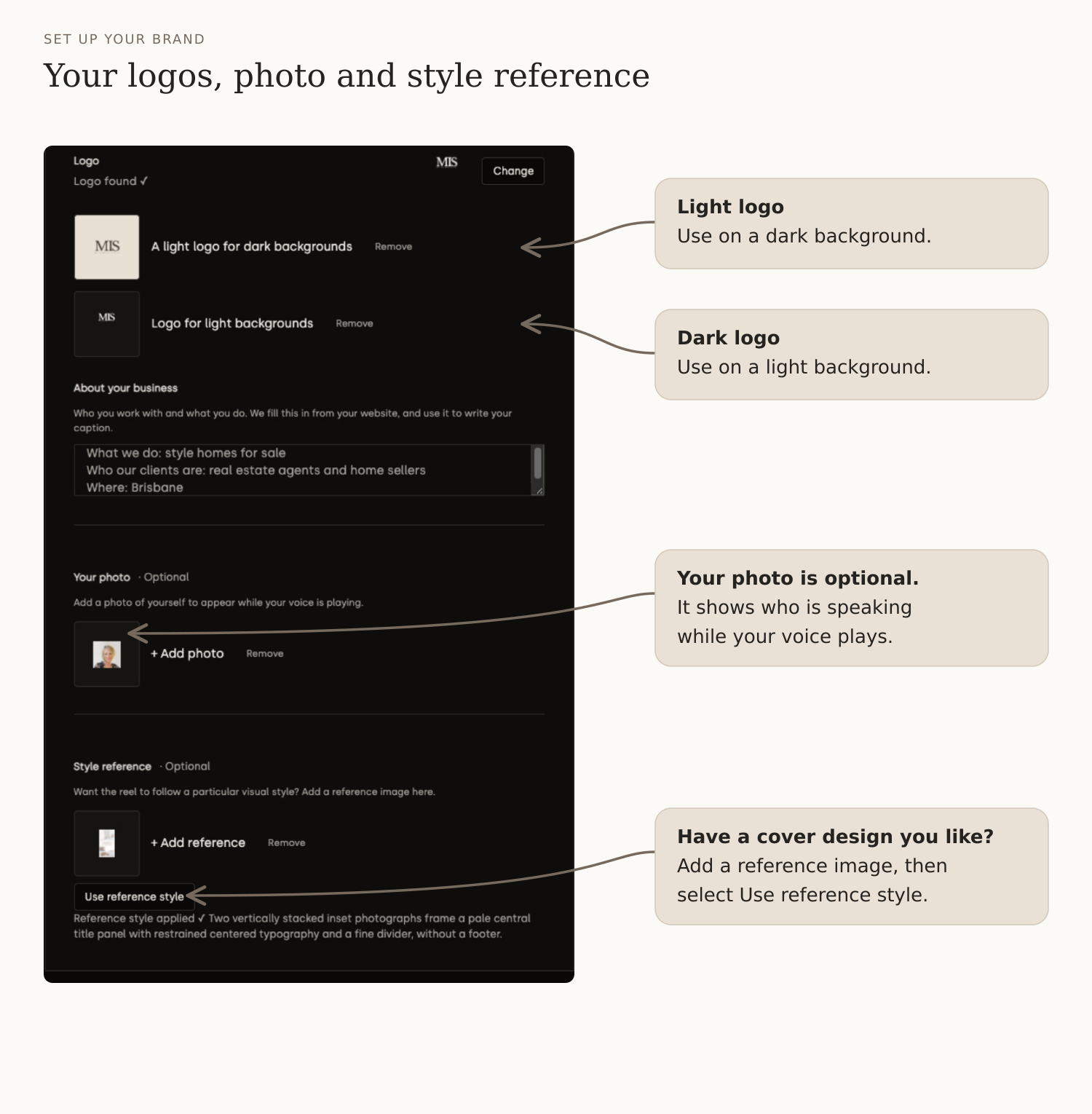
Set up your brand once.
- Enter your business name and website, then select Get my brand.
- No website, or it cannot be read? Select Manually add my brand.
- Check your colours, font and logos in Brand details.
- Add your photo if you like, then select Save my brand.
STEP 1 · PHOTOS & COVER
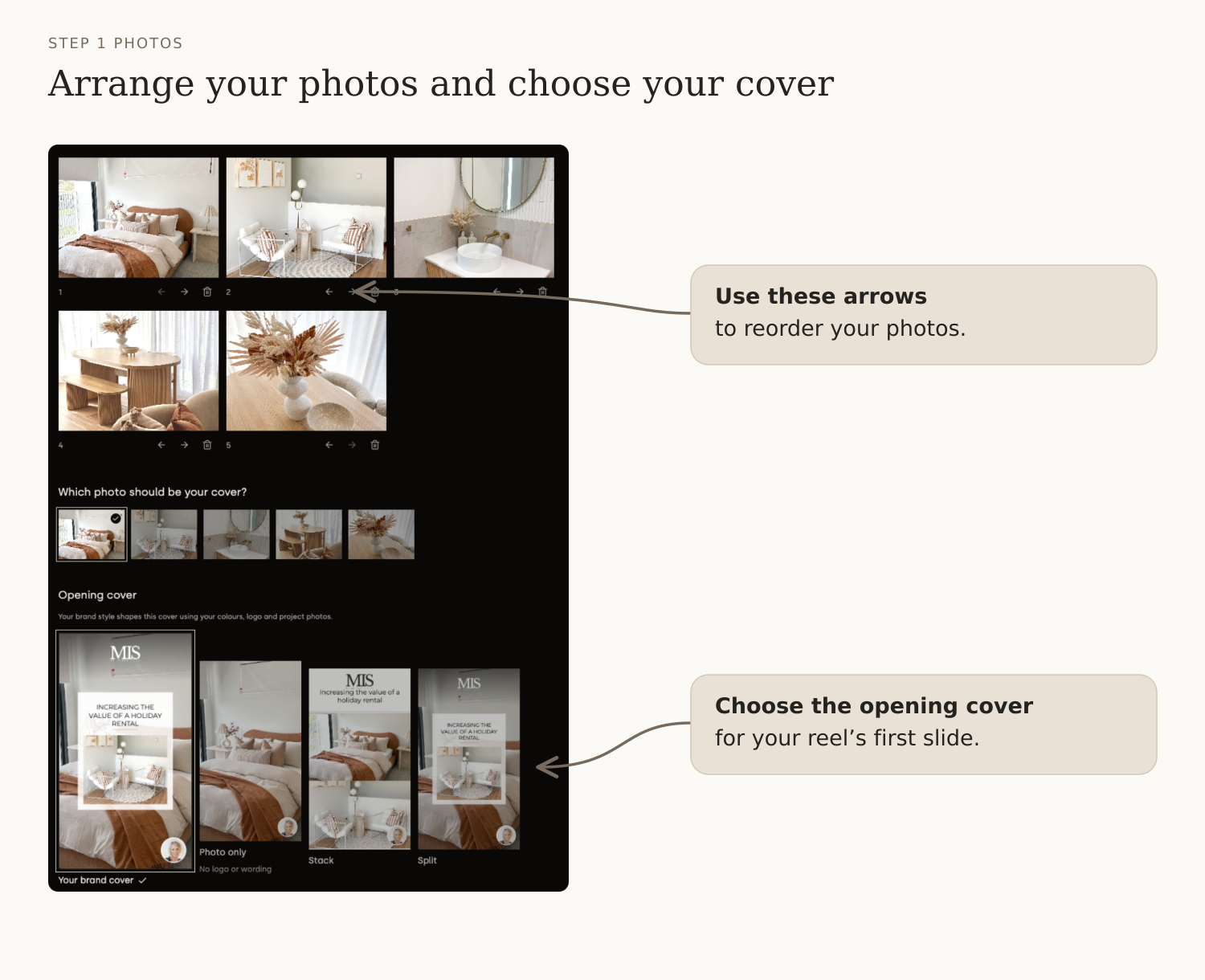
Add your photos. Choose your cover.
- Select Create a reel.
- Write a hook that makes people want to watch.
- Add your photos or clips. Include a photo for your cover.
- You can arrange the photos by using the arrows below each photo.
- Choose your cover page template.
- Select Continue to voiceover.
STEP 2 · YOUR STORY
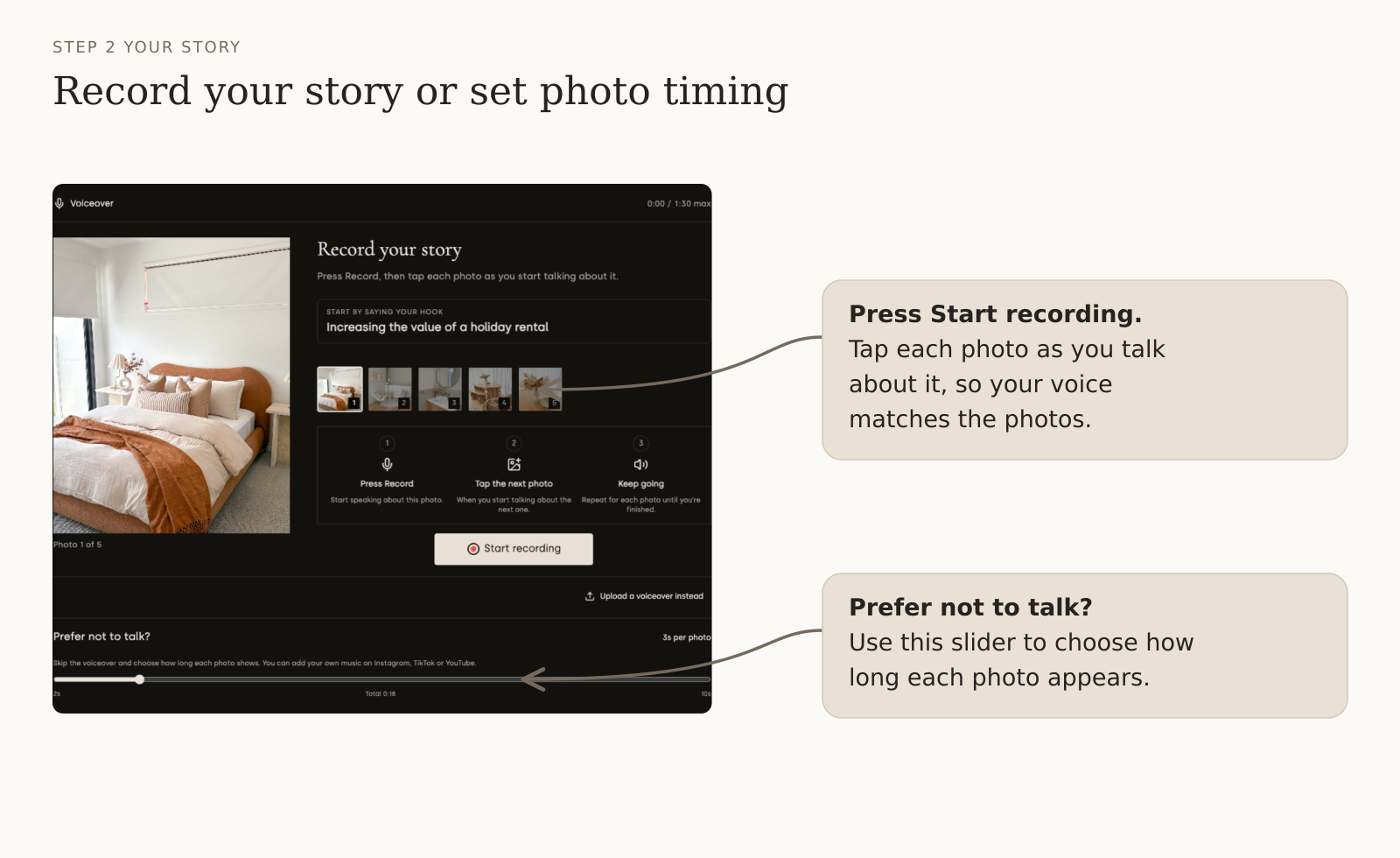
Your voice telling your stories.
- Press Start recording and say your hook.
- Tap the next photo as you start talking about it, so your voice matches your pictures.
- Prefer no voiceover? Under Adding music later?, select Skip voiceover and use photo timing.
- Then choose the seconds per photo.
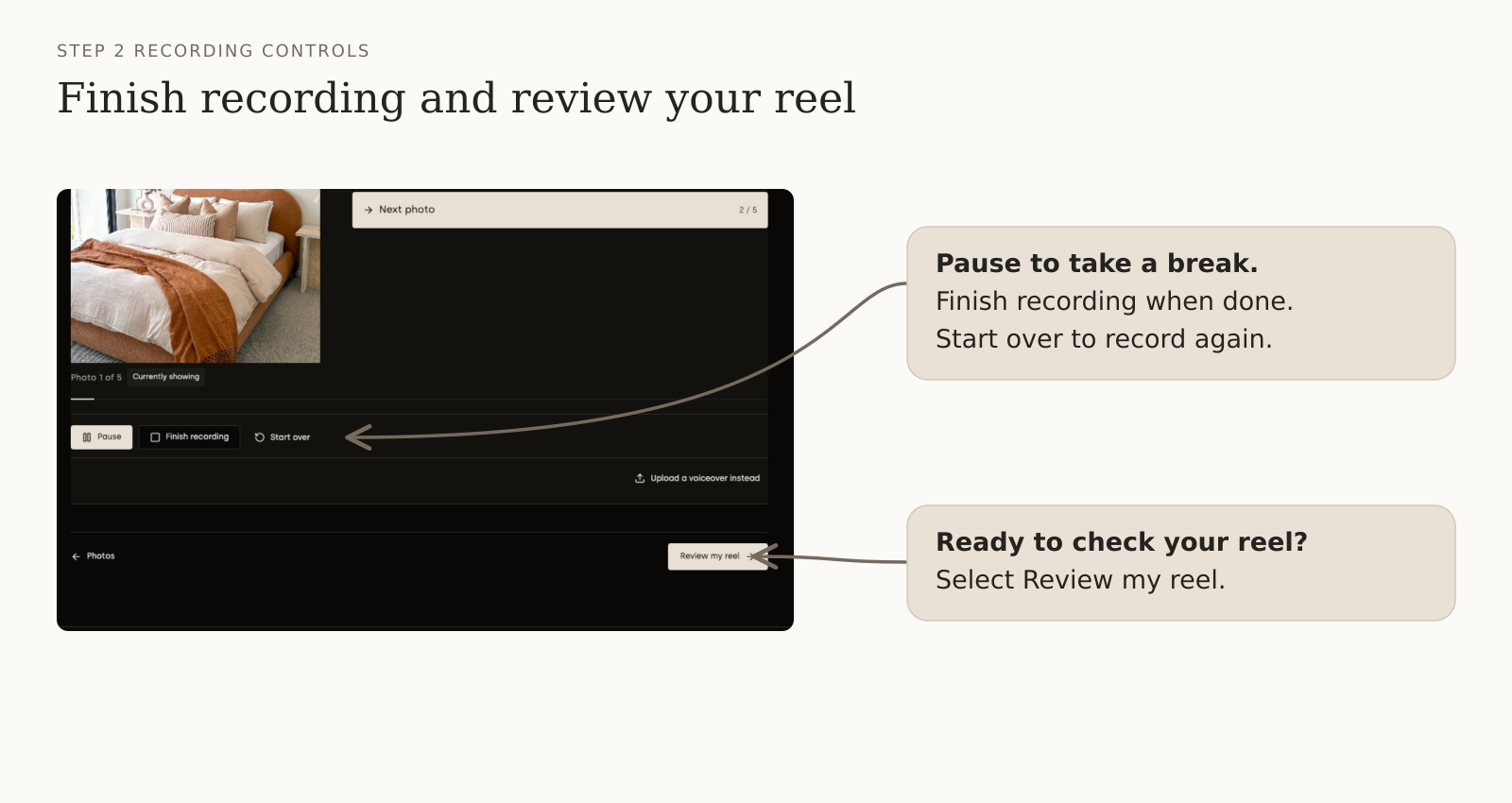
Listen back before you move on.
- Select Finish recording, then Play back.
- Use Record again for another take, or upload a voiceover instead.
- Ready? Select Review my reel.
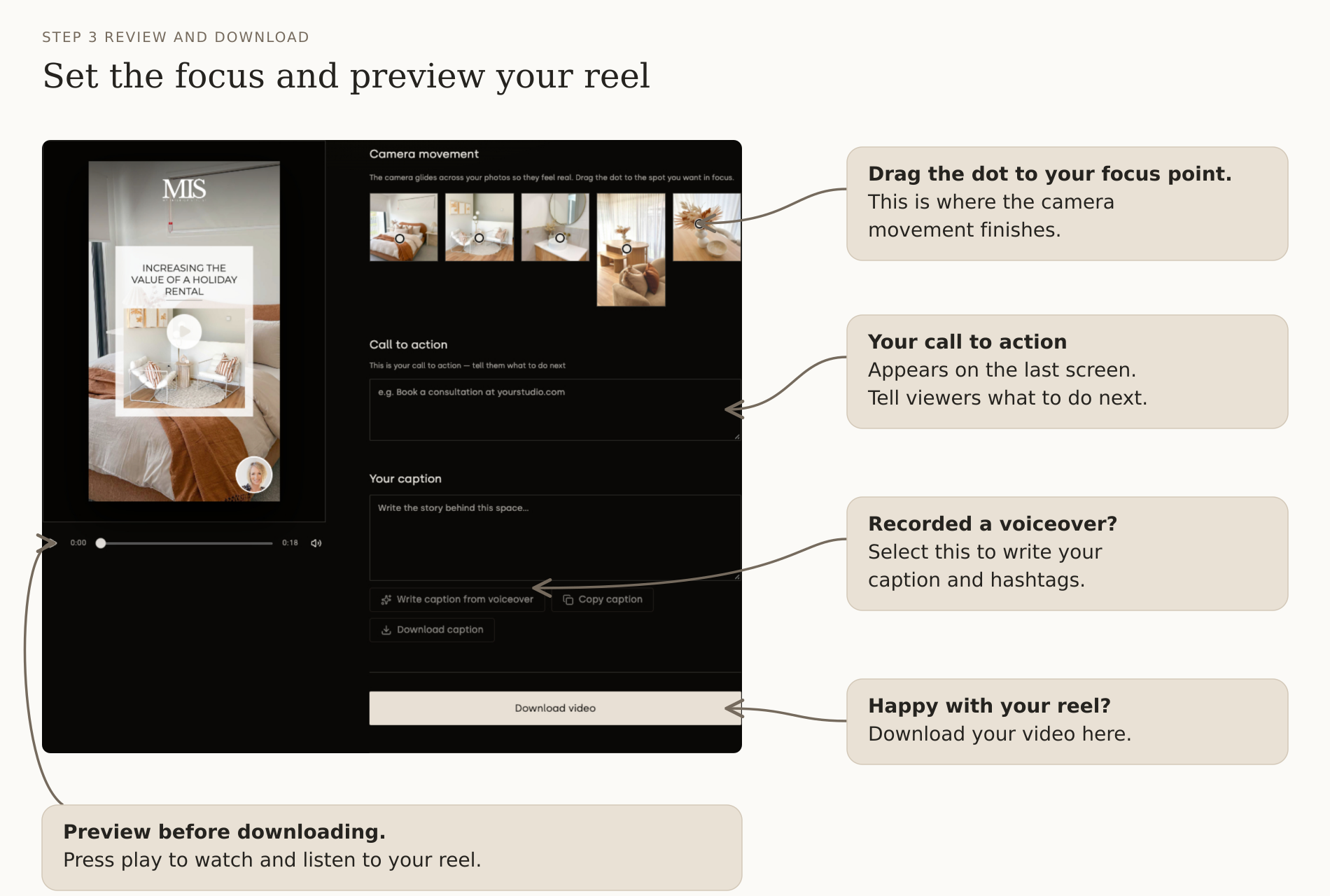
STEP 3 · REVIEW & DOWNLOAD
Watch it. Then download it.
- Drag the dots to choose the focus.
- Add your call to action and caption.
- Press play to watch and listen.
- Happy with it? Select Download video.
- Save your video and cover image.
- Copy or download your caption too.
QUICK ACCESS
Add Insta Reel Hub to your home screen.
For quick and easy access, you can add Insta Reel Hub directly to your phone's home screen or computer desktop, just like an app. This means you won't need to search for the website every time you want to use it.
iPhone or iPad
- Open instareelhub.com in Safari.
- Tap the Share icon (the square with an upward arrow).
- Scroll down and select Add to Home Screen.
- Tap Add.
Samsung and other Android phones
- Open instareelhub.com in Chrome.
- Tap the three dots in the top-right corner.
- Select Add to Home screen or Install app.
- Follow the prompts to confirm.
Desktop or laptop (Windows or Mac)
- Open instareelhub.com in Chrome.
- Click the three dots in the top-right corner.
- Select Cast, save and share.
- Select Create shortcut or Install page as app.
You can now access Insta Reel Hub directly from your device without having to type in the website address. Menu wording may vary slightly depending on your device and browser version.